
Table of Contents
1. Hardware and Software Prerequisites
2. Download Infohub and Install
4. Creating and Configuring a New Instance
6. Deploying the Flow Platform, Server, and Engines
Welcome to the Flow Software Quick Start Guide for Infohub!
Our goal is to help you quickly achieve success with Infohub, setting the foundation for mastering the tool in the long term. This guide will walk you through the essentials—installation, deployment, configuration, and your first project.
By following these steps, you'll be able to start using Infohub effectively and begin unlocking the full potential of your data with confidence.
Hardware and Software Prerequisites
Flow Software's solution consists of several components working together to create a complete system. These components include:
- the Flow Server
- the Flow Config
- the Flow Bootstrap
- the Data, Message, and Integration Engines
These components may be installed separately across multiple servers, but for this guide, we will focus on all components running on a single VM or physical server. Here are the hardware and software requirements for that server:
Download Infohub and Install
Download the current version of Infohub.
With Infohub downloaded, you are ready to run the installer: Flow X.X.XXXX.XXX.msi to launch the Infohub Setup Wizard.
Click 'Next' to proceed. Infohub's Setup Wizard will now ensure you have met all software requirements.
Next, please read and accept the End User License Agreement, also available from our website.
As mentioned before, we will focus on installing all components on a single machine, so ensure both Config and Bootstrap are selected.
Choose the appropriate installation path and click 'Next'.
Give permission for the Setup Wizard to make changes on your device. Infohub will now install, typically this process is only 3 to 5 minutes long.
Success will result in the following message.
Click 'Finish'
Configuring the Infohub Bootstrap
Infohub's Bootstrap will have been automatically installed and started as a Window's Service. We need to ensure that the Bootstrap is set to start automatically and also has sufficient permissions.
Open the Windows Services application and find the Flow Bootstrap.
Verify that 'Startup type' is set to 'Automatic', if not change it.
Select the 'Log On' tab and change the 'Log on as:' option to a specific account that has the following:
- Local administrator rights on the server
- Access to the MSSQL database where the Infohub database will be deployed
- Access to any data sources or data consumers (e.g. historians, SQL databases, etc) that Flow will need to communicate with
Click 'OK' and restart the Bootstrap service.
If the Windows account used to start the Bootstrap Service cannot be given access to the MSSQL server, you can configure the Bootstrap Service to use SQL authentication instead. Instructions on how to do so can be found in this article.
Creating and Configuring a New Flow Instance
To create a new Infohub instance and build an Infohub project, we will use the Config tool.
Launch the Infohub Config from your Windows Start Menu.
The Connect Window can be used to create a new instance of Infohub, or connect to an existing Infohub Instance.
Name your Instance. In the above example, we have used 'ACME Fruit Juice'.
Provide the location of the SQL Server that Infohub will use; depending on your architecture, this is not necessarily the server that you installed Infohub on.
If using SQLEXPRESS, you may need to append \SQLEXPRESS to the server name depending on whether it was installed as a named instance.
You can verify this by opening Windows Services and looking at the SQL Server service. If there is any name other than (MSSQLSERVER) appended to the service, that is the name you must use.
Name the database that will be created on the SQL Server. Infohub will create this database for you automatically, it does not need to be preconfigured. It is recommended that you use the same name as the Infohub Instance, prepended with 'Infohub' or 'Flow'. In this case we have used 'Flow ACME Fruit Juice'. This practice makes it easier to manage multiple databases associated with multiple Flow Instances.
If the current Windows User has permission to connect to and create a SQL Server database, leave the Username and Password fields blank. If the current Windows User Account does not have these permissions, enter the appropriate credentials.
Click 'Create'.
Select your Time zone and Culture. Click 'Create'.
Infohub will now create the database and create your new Instance. This process may take up to 5 minutes. If the application times out, double check the 'Server' name and if using SQL Server Express, ensure you have appended your server name as shown above with '\SQLEXPRESS'.
Config Tool Layout
Getting started with the Config tool does not require using all of the Config components. For this exercise, we will focus on the components necessary for proper configuration and our first basic project.
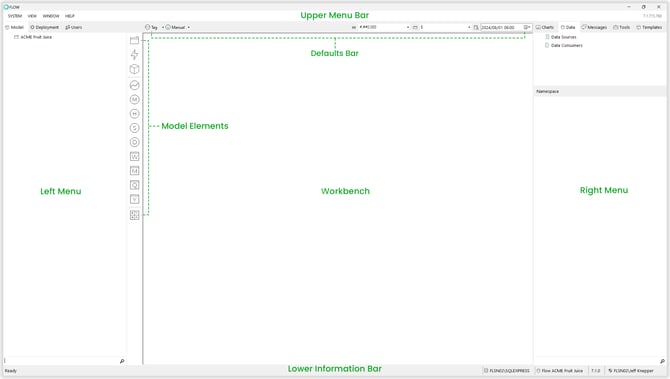
The Infohub Config tool consists of several areas of focus:
- the upper menu bar
- the defaults bar
- the left menu with tabs
- the Model Elements
- the Workbench
- the Right Menu with tabs
- the Lower Information Bar
Please take a moment to familiarize yourself with the names of each area.
Deploying the Platform, Server, and Engines
To ensure your Infohub Instance is ready to build upon, we need to deploy and complete the configuration of the Platform, the Server, and the Data, Message, and Integration Engines.
Select the 'Deployment' tab from the left menu.
The Platform is shown, in our case 'FLSN02', as well as the Server, Data Engine, Message Engine and Integration Engine. The green disc beside each item indicates that it has not yet been deployed.
Right click on the Platform, select 'Deploy', and allow for 30 seconds to a minute for the Platform to be deployed. While the solution is deploying, the disc will turn red before going away completely.
A continued red disc indicates that the component is not running as it should and will require further troubleshooting. Hover over the Platform to troubleshoot the issue. Likely, the Bootstrap does not the correct credentials to connect to the SQL Server. Revisit Configuring the Bootstrap above.
Below is an example of a successful Platform deployment.
If the Platform did not deploy, see our troubleshooting guide at the bottom of this Quick Start.
Now do the same for the Server, the Data Engine, the Message Engine and the Integration Engine, right clicking on each, one-at-a-time and selecting 'Deploy'. Each green disc will cycle to red before clearing.
If successful, your Deployment menu should look similar.
Dashboards as well as the API are made available via the Server. Let's ensure there is not a port conflict with the Server.
Double click the 'Server' from the Deployment menu to open its menu within the Workbench.
Click 'Properties' to expand the submenu.
By default, the Server is configured to use Port 80. This port often has other applications already using it.
If you choose to adjust the port, right click on 'Server' from the Deployment tab in the left menu, select 'Undeploy'. Once the Server has been undeployed, the green disc will return.
Now redeploy by right clicking and selecting 'Deploy'. The port change will now be executed and the disc will clear.
Close the Server window in the Workbench by clicking the 'x' in the upper left hand corner.
Congratulations, you are completely installed and configured!
Troubleshooting Guide
Bootstrap Service Missing or Never Installed
You must be an admin on your node and should install Infohub using elevated privelages.
1. Run the installation, by right clicking on the installer and selecting 'Run as Administrator'.
Platform Will Not Deploy
Error Message:
"Please make sure the Bootstrap Service and Platform is running on <ServerName> and that it is configured to use port 4501 and not use https"
1. Right click on the Platform. Do you see the option to 'Deploy' or 'Undeploy'?
Yes: Skip to step 2.
No: Your user account has not been configured as having admin rights for the Flow Config tool. Request that a Config administrator either deploy the Platform or grant you admin rights.
2. Ensure that the Bootstrap service is running. Open the Services app from the Windows start menu. Find the Flow Bootstrap service. Is it running?
Yes: Open SYSTEM > PROPERTIES from the Config men bar and ensure that the port is set to 4501 and that HTTPS is 'False'.
No: Start the service.
Attempt to deploy the Platform by right clicking and selecting 'Deploy'. It might take up to a minute for the platform to deploy.
If the Platform still will not deploy, proceed to step 3.
3. Open the Services app from the Windows start menu. Find the Flow Bootstrap service and right click on the service, selecting 'Properties'. Click the 'Log On' tab and identify the user account that the Bootstrap service is using. This account must also have administrator rights on the SQL Server. Either change the user account that the Bootstrap service is using to match an existing user account with admin rights on SQL Server, or create/promote this user account to be an admin on SQL Server.